Showing posts with label pdf. Show all posts

Monday, January 9, 2012

play flash in a flash flip book

Know more: www.flippdf.com


Movies can play in flippingbook; sound can play in flippingbook; images can add to flippingbook, and now I am wondering if a flash file can play in a flash flippingbook? I have some .swf files that to embed to my flipping magazine, I tried to follow the add movie steps but seems not word. So is that possible to add flash files to a flash flip book?

Yes, of course it’s possible. The following steps tell you how.

Step1: push “Edit Pages”  button to open the editing interface.

Step2: click “Add swf” button and draw an area for your flash file
Step3: now you can see a SWF properties window on the right side. Click “select a SWF” to choose files from your computer.
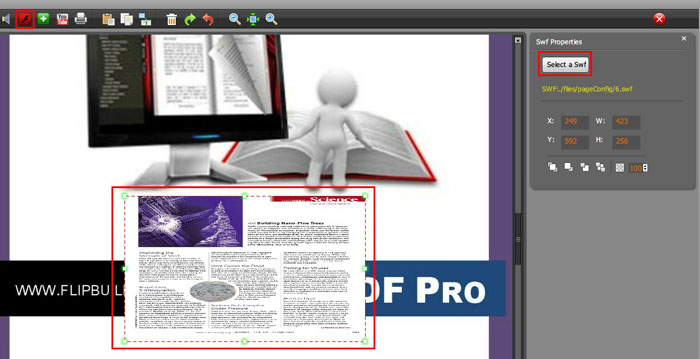
Finally, save and quit, that’s how it word easily.

Free download Flip PDF

Free download Flip PDF Professional

Free download Flip PDF for Android

Free download Flip PDF for Mac OS X (Lion)

Free download Flip PDF Professional for Mac OS X

Add bookmarks to the flash flip book

Get more: www.flippdf.com


I have converted a PDF novel book to flash format, it’s quite a long story that there are hundreds of pages. That would be a nightmare to find a certain chapter, unless you can remember all the page numbers of the chapters. So I think that would be great if I can set bookmarks by chapters or sections.
Adding bookmarks is an easy job with Flip PDF.

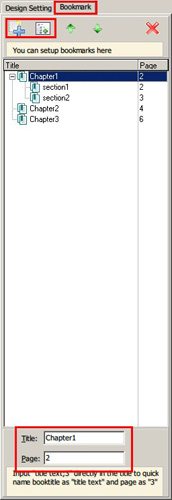
There is a “Bookmark” tab at the right side of “Design setting” tab, choose it and you can see the bookmark panel.
You can add several bookmarks to your flash book by using “Add” and “Add child” button. After added bookmarks, you can name a title and the page number of the bookmark in the blank below the panel.

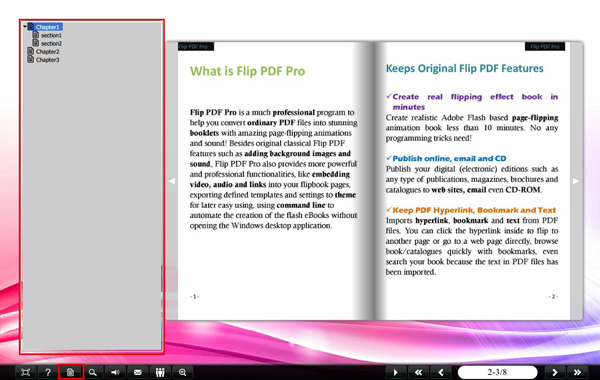
Apply change, a book mark button will be shown on the control bar, click to select bookmarks.

And also, you can directly import bookmarks if the original PDF file had some already. Just check the “Import Bookmark” button  when importing PDF file.


Free download Flip PDF

Free download Flip PDF Professional

Free download Flip PDF for Android

Free download Flip PDF for Mac OS X (Lion)

Free download Flip PDF Professional for Mac OS X

embed audios to the flippingbook

Get more: www.flippdf.com


One of the differences between real books and flash flip books is that flash books are a kind of multimedia that performs wide range of content to readers. A flash flippingbook can contain many other media like audios. So I’m here to ask you how to put a sound file to my flippingbook?

Here are the steps:

Step1: click the “Edit pages”  button and open an editing interface.
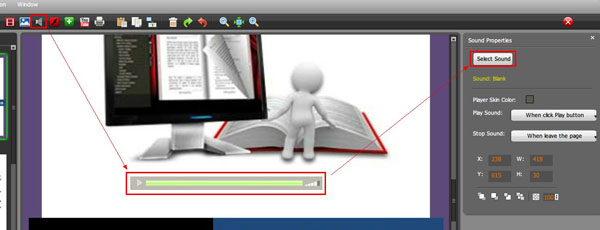
Step2: click “Add sound” button and draw an area for the sound player in the page.
Step3: and then look at the right side and you can see a sound properties window, hit “Select Sound” button to choose a sound file.

Save and exit the interface, the player is right there.

Free download Flip PDF

Free download Flip PDF Professional

Free download Flip PDF for Android

Free download Flip PDF for Mac OS X (Lion)

Free download Flip PDF Professional for Mac OS X